AI image upscaling with Power Automate Desktop
AI image upscaling intelligently adds new pixels by predicting what the high-resolution version of the image should look like, unlike traditional upscaling methods that often result in blurry or pixelated images.
Power Automate Desktop (PAD) is a free Microsoft Windows application that uses robotic process automation to automate repetitive tasks. It allows users to create "desktop flows" that can interact with local applications and resources on a PC, such as files, folders, the keyboard, mouse, and web browsers.
Instead of an local AI image upscaler we will use the Nero AI API to process the images in the cloud. This will allow swift results without requiring a beefy PC setup.
Preparation
- Get your free Nero AI API key from https://ai.nero.com/ai-api
- The free key comes with a certain amount of credits to be spend on the online processing. Make sure that you have some credits available to upscale your images.
- Power Automate Desktop comes preinstalled on most Windows 11 systems and can be downloaded for free from the Microsoft Store
- Please make sure to sign in in Power Automate Desktop with your Microsoft account
- Create a new desktop flow with a descriptive name
- Copy the text from https://oliverx.link/stat/pad-image-upscale.txt and paste it into your flow
- Double-click the first command in the flow and replace the placeholder PLACEAPIKEYHERE with your personal API key obtained in step 1
Run the AI image upscaling
Now you are ready to run the flow. It comes equiped with a sample image. If you want to process a different one, just replace the URL in the second action. Afterwards just hit play.
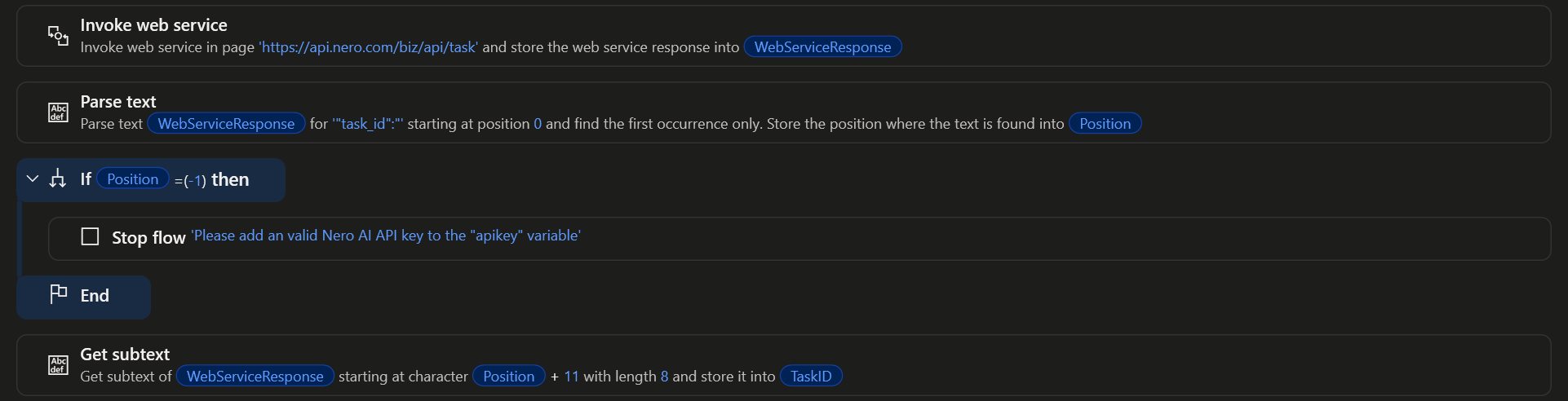
The "Invoke web service" action sends the image URL to the Nero AI API and asks it to upscale the picture. Afterwards it parses the response to get the identfier for the task (TaskID). If no TaskID is found, the flow will stop.
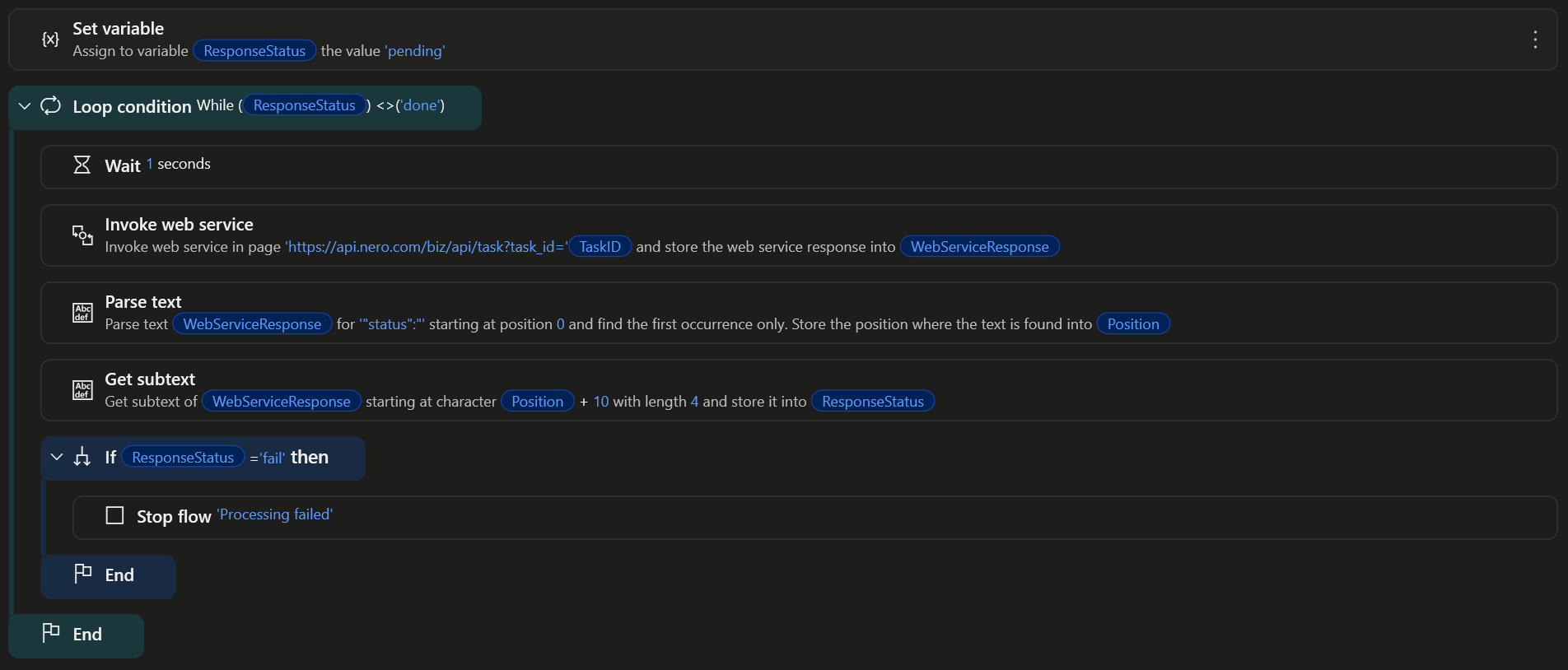
Now the flow will use the Task ID to fetch the status of the upscaling from the Nero AI API every second until the status is "done". If the status is "failed", the flow will stop.

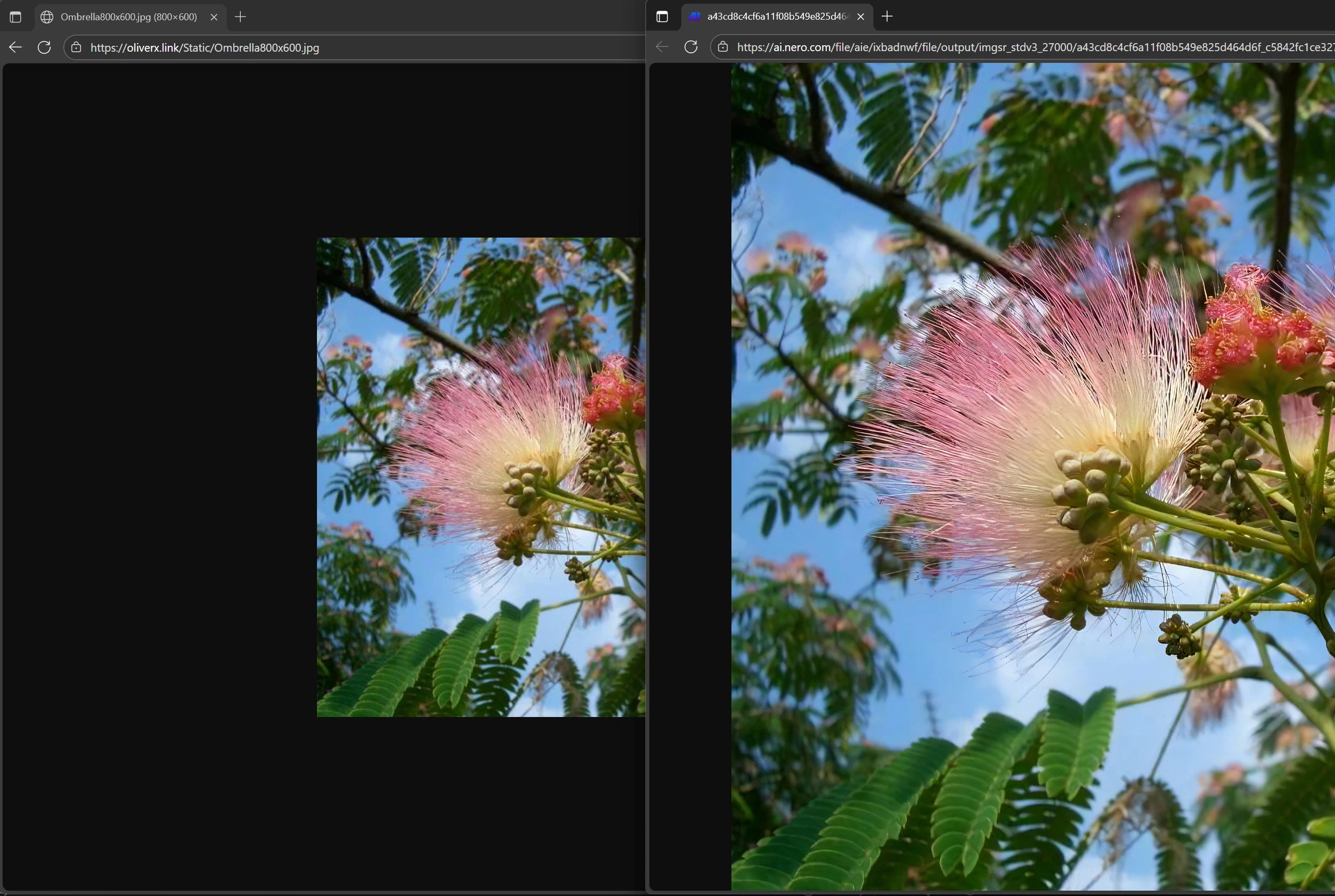
As a final step the flow will open your web browser and display the original image as well as the upscaled image for you to compare.
The result
Click the image to see a 1:1 representation.